From Read-Only Grids to Real Spreadsheets in React

Syncfusion provides third-party UI components for React, Vue, Angular, JavaScript, Blazor, .NET MAUI, ASP.NET MVC, Core, WinForms, WPF, UWP and Xamarin.
TL;DR: When React apps move beyond data display, read‑only grids start breaking down. This article explores when a true Excel‑like spreadsheet editor makes sense, covering real-world use cases, editing and formula support, Excel import/export, performance at scale, and how it improves UX, productivity, and long-term maintainability for data-heavy applications.
Modern React applications don’t just display data anymore. Users expect to edit values, apply formulas, format cells, analyze results, and export files, all without leaving the app. That’s where traditional read‑only data grids begin to struggle.
Grids work well for displaying rows and columns, but as soon as real data work enters the picture, teams end up patching missing features, adding workarounds, or pushing users back to Excel. At that point, it’s worth asking whether a grid is still the right foundation.
This article looks at when grids fall short, what defines a real spreadsheet experience, and how React apps can move to an Excel‑like Spreadsheet Editor without rewriting the UI.
Why read-only data grids fall short for modern React apps
Data grids are optimized for viewing and light interaction, not for data manipulation. That limitation becomes clear as soon as users need to do more than scroll and filter.
Common breaking points include:
No built‑in formula support for calculations or derived values
Limited or no cell‑level formatting
Missing Excel workflows like autofill, copy/paste ranges, or multi‑cell edits
No native way to import or export real Excel files
Increasing customization cost as every new requirement turns into custom code
When users repeatedly export data just to finish their work in Excel, the grid no longer helps; it slows the workflow.
What a real Excel-like Spreadsheet editor requires
A spreadsheet experience is more than editable cells. It’s a cohesive set of capabilities that allow users to work with data naturally, the same way they already do in Excel.
At a baseline, a production‑ready React spreadsheet editor needs:
Smooth inline editing with keyboard navigation
Multi‑cell selection, copy/paste, and autofill
Formula support with automatic recalculation
Rich formatting (fonts, borders, alignment, number formats)
Reliable Excel import and export without breaking structure
For data‑heavy or enterprise applications, additional capabilities matter just as much:
Multi‑sheet workbooks for complex datasets
Charts and visualizations generated from sheet data
Data validation to control inputs
Sheet‑ and workbook‑level protection
When these features exist natively inside the app, users stop switching tools, and productivity improves immediately.
Syncfusion Spreadsheet Editor
One of the first questions developers ask is whether a spreadsheet can handle large datasets. Performance becomes critical when you’re dealing with thousands of rows, formulas, and multiple sheets.
The Syncfusion React Spreadsheet Editor is exactly that, and it scales. It handles large datasets efficiently using virtualization , keeping performance fast even with thousands of rows and columns. For large workbooks, enable virtualization and follow the React Spreadsheet performance best practices, including virtual scrolling, chunked responses, and controlled formula recalculation.
What makes the upgrade smoother:
Unified API across React, Angular, Vue, Blazor, and other major frameworks, ideal for teams with mixed stacks.
Consistent behavior across tech stacks, low learning curve for your team.
Maintainable codebase, one component that scales as your product grows.
Whether your team works with a single framework or a mixed stack, the Syncfusion Spreadsheet Editor is available across all major frameworks, so everyone works with the same component, the same API, and the same behavior.
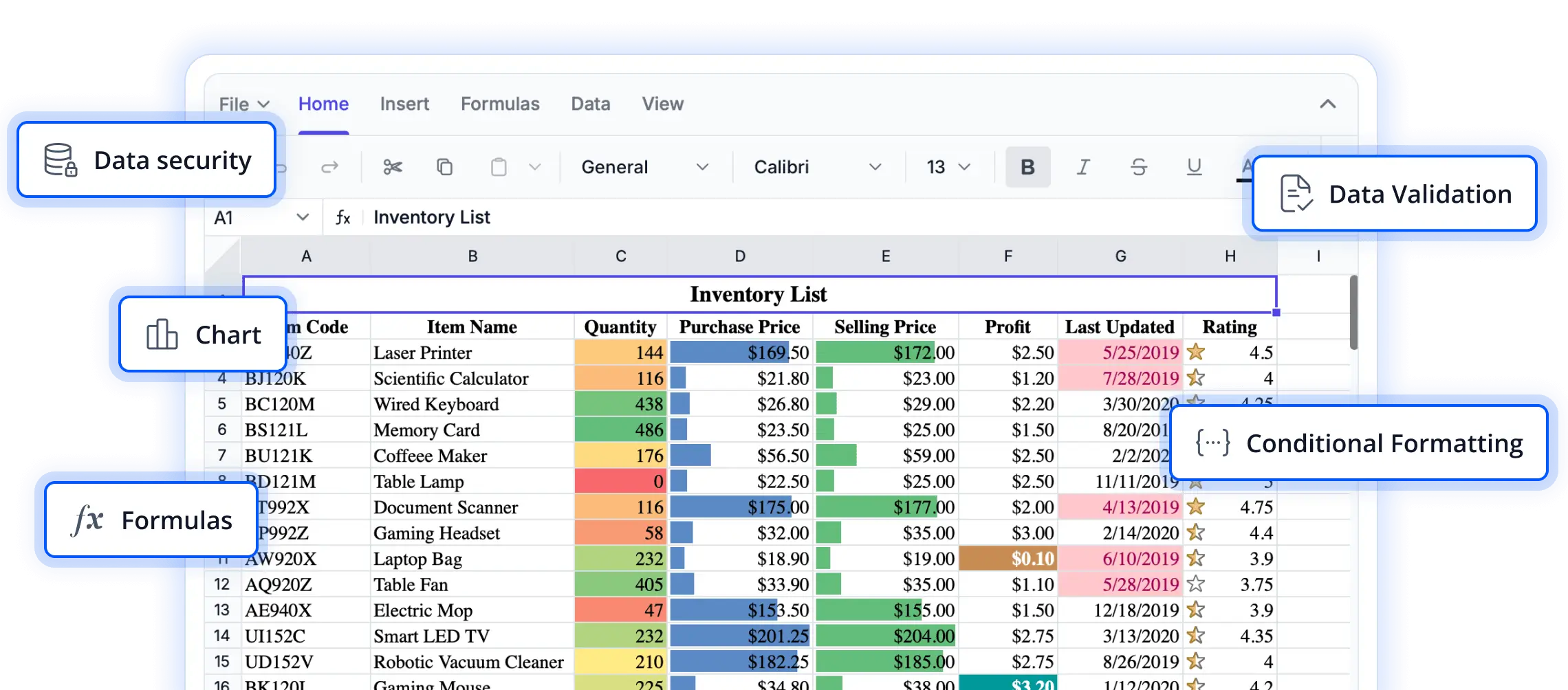
React Spreadsheet Editor
Ready to explore everything the React Spreadsheet Editor can do? Jump into the feature tour.
What a Syncfusion React Spreadsheet editor delivers out of the box
Switching from a grid to a spreadsheet isn’t just about editing; it’s about unlocking workflows that weren’t possible before.
Core spreadsheet features
Cell and range selection with real keyboard support
Inline WYSIWYG editing
Undo/redo, copy/paste, and autofill
Multi‑line cell editing
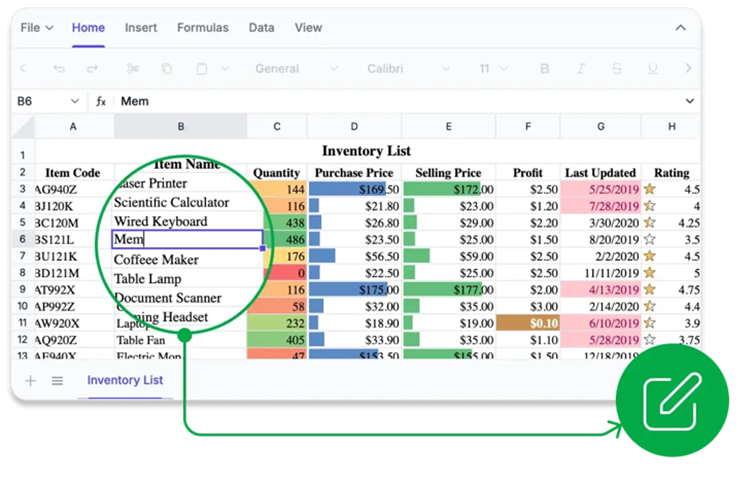
Editing in React Spreadsheet Editor
Excel-level calculation and formatting
Built‑in formulas with automatic recalculation
Number formats for currency, percentages, dates, and time
Conditional formatting and aggregates
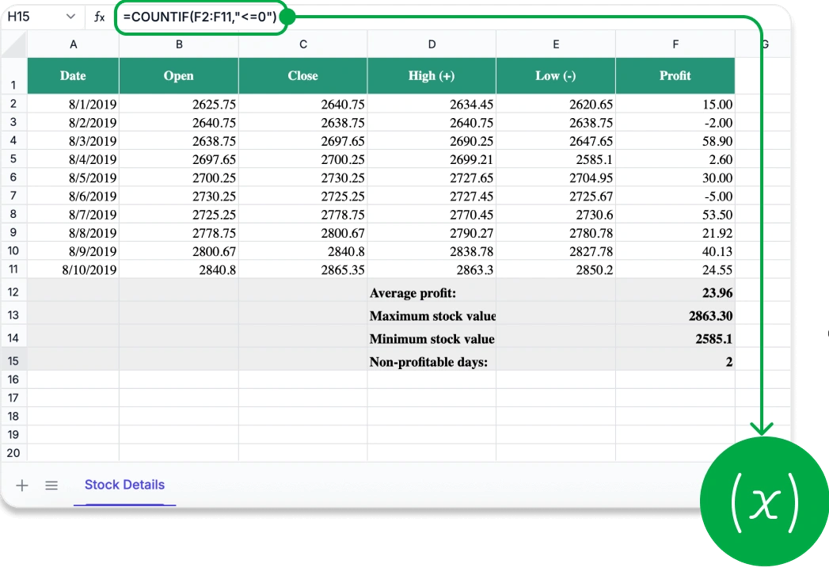
Adding a formula in React Spreadsheet Editor
Data organization and analysis
Sorting and filtering
Data validation
Freeze panes and resize rows or columns
Insert, delete, hide, or merge cells and sheets
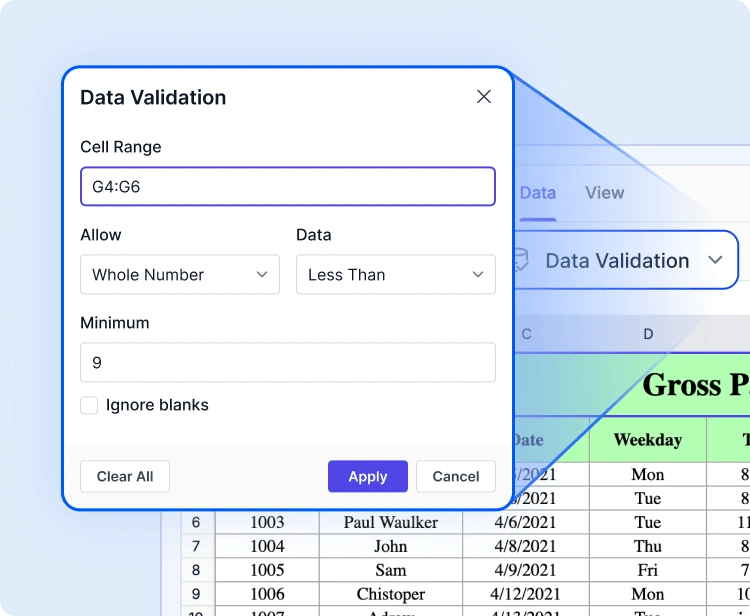
Applying data validation in React Spreadsheet Editor
Advanced spreadsheet capabilities
Charts created directly from sheet data
Images and hyperlinks
Sheet and workbook protection
Customizable UI and templates
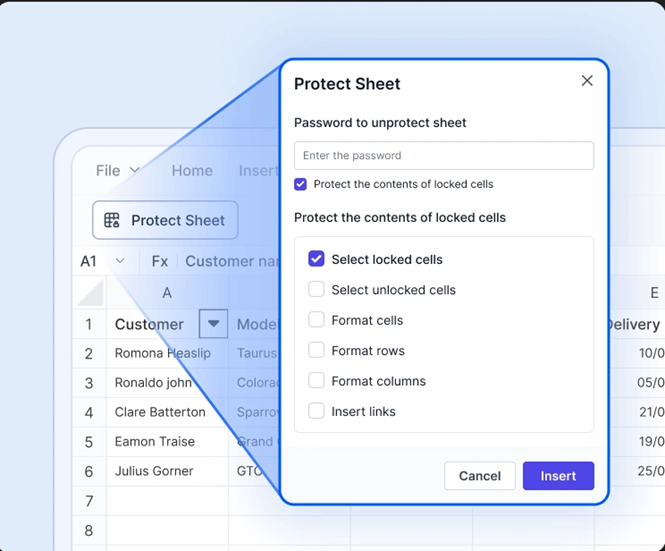
Protect sheet support in React Spreadsheet Editor
Global, accessible, production-ready
Localization and RTL layouts
Global number and date formats
Full WAI‑ARIA compliance with keyboard navigation
All of these features come together in a single component, reducing custom development and long-term maintenance.
Want to see all these spreadsheet features in action? Try the Syncfusion React Spreadsheet demo.
How to integrate Syncfusion Spreadsheet into a React app
Adding our ** Spreadsheet React** component to your app is quick and straightforward. With just a few steps, you can replace your grid with a fully interactive Excel‑like editor.
Step 1: Create a new React application
You can quickly set up a React app using Vite.
npm create vite@latest my-app -- --template react
cd my-app
npm run dev
Step 2: Install the Syncfusion React Spreadsheet Editor package
npm install @syncfusion/ej2-react-spreadsheet --save
Step 3: Add required Syncfusion CSS styles
@import '../node_modules/@syncfusion/ej2-base/styles/material.css';
@import '../node_modules/@syncfusion/ej2-inputs/styles/material.css';
@import '../node_modules/@syncfusion/ej2-buttons/styles/material.css';
@import '../node_modules/@syncfusion/ej2-splitbuttons/styles/material.css';
@import '../node_modules/@syncfusion/ej2-lists/styles/material.css';
@import '../node_modules/@syncfusion/ej2-navigations/styles/material.css';
@import '../node_modules/@syncfusion/ej2-popups/styles/material.css';
@import '../node_modules/@syncfusion/ej2-dropdowns/styles/material.css';
@import '../node_modules/@syncfusion/ej2-grids/styles/material.css';
@import '../node_modules/@syncfusion/ej2-react-spreadsheet/styles/material.css';
Step 4: Load the Spreadsheet component
After installing the required package and styles, you load the spreadsheet component, bind your data, and configure sheets, columns, and ranges as needed.
import * as React from 'react';
import { createRoot } from 'react-dom/client';
// Import Syncfusion Spreadsheet
import {
    SpreadsheetComponent,
    SheetsDirective,
    SheetDirective,
    RangesDirective,
    RangeDirective,
    ColumnsDirective,
    ColumnDirective
} from '@syncfusion/ej2-react-spreadsheet';
// Import data
import { data } from './datasource';
export default function App() {
    return (
        <SpreadsheetComponent>
            <SheetsDirective>
                <SheetDirective>
                    <RangesDirective>
                        <RangeDirective dataSource={data}></RangeDirective>
                    </RangesDirective>
                    <ColumnsDirective>
                        <ColumnDirective width={100}></ColumnDirective>
                        <ColumnDirective width={110}></ColumnDirective>
                        <ColumnDirective width={100}></ColumnDirective>
                        <ColumnDirective width={180}></ColumnDirective>
                        <ColumnDirective width={130}></ColumnDirective>
                        <ColumnDirective width={130}></ColumnDirective>
                    </ColumnsDirective>
                </SheetDirective>
            </SheetsDirective>
        </SpreadsheetComponent>
    );
}
From there, you can enable features such as formulas, Excel import/export, charts, and protection without redesigning your app. For more details, explore the Syncfusion Spreadsheet documentation.
Step 5: Run the application
npm run dev
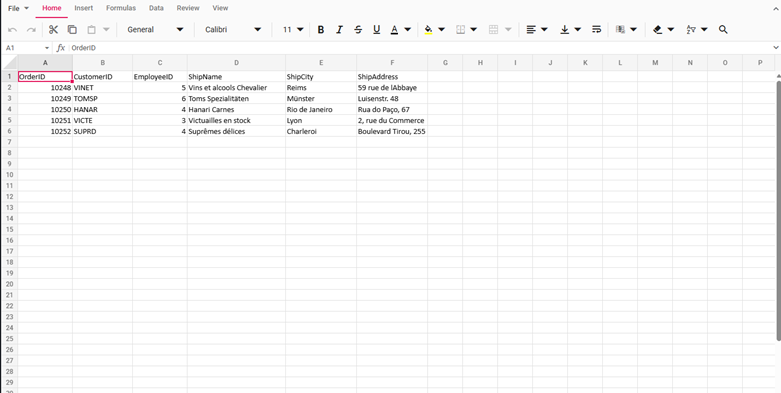
React Spreadsheet Editor using Sample Data
Grid vs Spreadsheet: A quick decision guide
Choose a data grid if:
You only need to display data
Editing, formatting, or calculations aren’t required
The workflow is read‑only
Choose a spreadsheet editor if:
Users need formulas, formatting, or calculations
Excel file import/export is part of the workflow
The app relies on charts, validation, or multi‑sheet data
You want a true Excel‑like experience inside the app
Frequently Asked Questions
Q1: Does the Spreadsheet Editor support charts, pictures, and hyperlinks?
Yes, charts, pictures, and hyperlink features are fully supported in the Spreadsheet Editor, but not available in a read‑only data grid.
Q2: Is the Syncfusion React Spreadsheet suitable for enterprise apps?
Yes. It offers enterprise-grade performance, rich APIs, accessibility, and reliable long-term support, making it ideal for internal business tools.
Q3: Can I import and export real Excel files in my React app using the Syncfusion Spreadsheet Editor?
Yes, the Syncfusion React Spreadsheet Editor supports importing XLSX, XLS, CSV, and JSON files, and exporting to XLSX, XLS, CSV, PDF, and JSON.
Note: Large‑file import/export typically uses a lightweight server endpoint powered by Syncfusion XlsIO for optimal performance and reliability (especially XLSM/XLSB).
Q4: Can I restrict or protect specific sheets or cells in the Spreadsheet Editor?
Yes. Sheet protection, including locked cells and range restrictions, as well as workbook-level password protection. This lets you precisely control what users can view or edit in the component.
Q5: Is the Spreadsheet Editor customizable?
Yes, the Syncfusion Spreadsheet Editor allows you to customize the ribbon, cell formatting, borders, and number formatting with localization support and templates to build entirely custom UI experiences.
Q6: Do I need a separate license for React, Angular, Vue, or Blazor?
No. The Syncfusion Spreadsheet is available across React, Angular, Vue, and Blazor frameworks under a single Spreadsheet Editor SDK license.
Q7: Does the Syncfusion React Spreadsheet require Microsoft Office or Excel to be installed?
No. It runs entirely in the browser. No Microsoft Office installation is required on the client side.
Conclusion: Stop patching. Start delivering
Thank you for reading! Read‑only grids were never designed for complex data workflows. As soon as formulas, formatting, or Excel interoperability come into play, grids become a patchwork of workarounds.
A true React Spreadsheet Editor brings Excel-level interaction directly into your application , with built‑in performance, scalability, and accessibility. Instead of stretching a grid beyond its limits, you give users a familiar, powerful environment that actually supports how they work.
When data work is not just about data display, it becomes clear.


